Updating coasti products
The simple way: Using the coasti installer
Run coasti product update from the coasti project directory:
cd /coasti
coasti product update <product_id>
For example:
coasti product update linkfish_genesis_stats
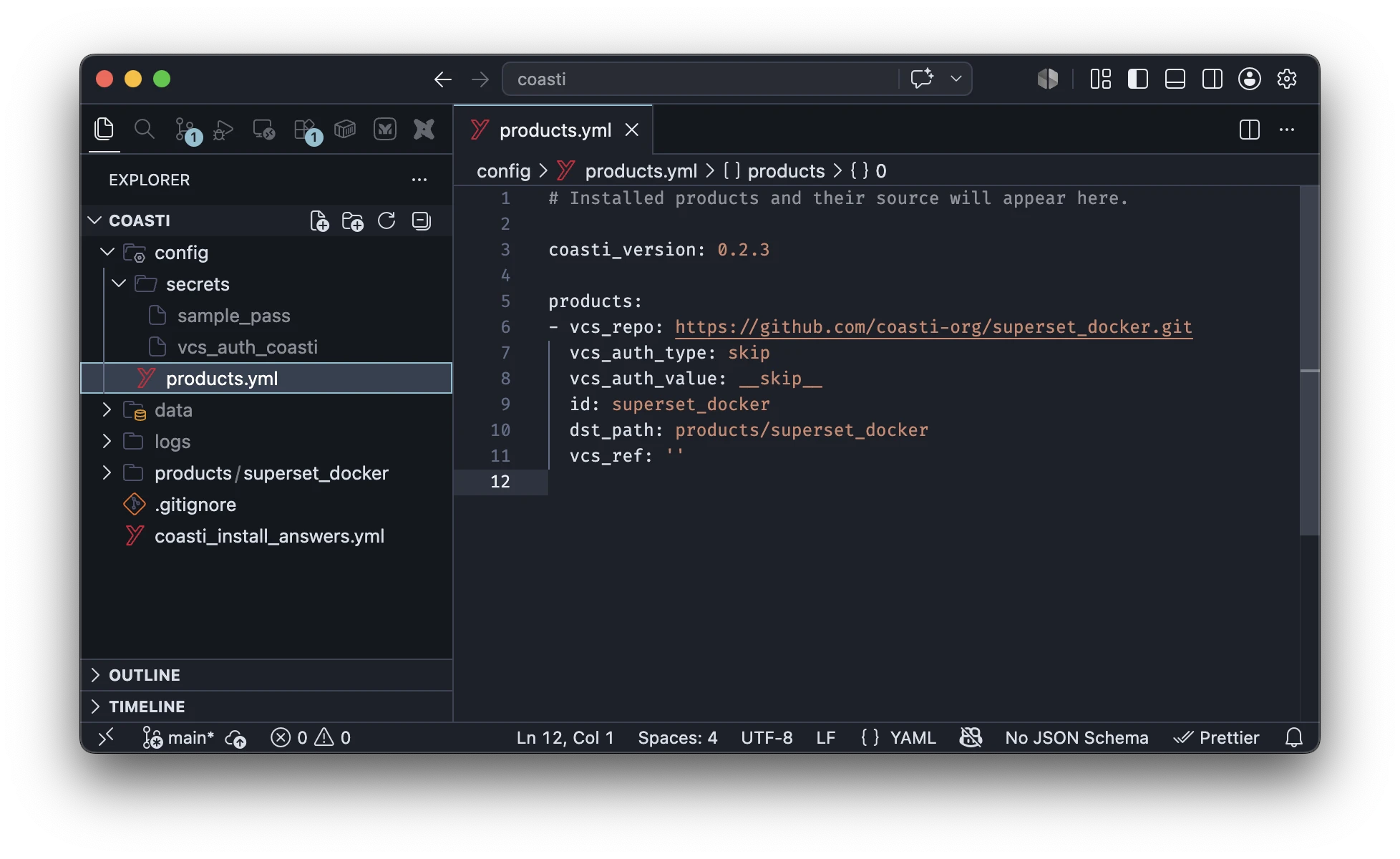
The command reads the repository, version, authentication, and installation
path from config/products.yml.
It also finds the product's
answers-file,
and passes the configured credentials to copier.
By default, the product is updated according the version-control reference stored in
products.yml, which should by default point to the latest tagged product release.
To select another reference, use --vcs-ref, (see below for more details):
coasti product update linkfish_genesis_stats --vcs-ref v1.1.0
When the reference changes, coasti also updates the product's entry in
config/products.yml. Use --pretend to inspect the operation without writing
changes:
coasti product update linkfish_genesis_stats --pretend
If a product uses a non-standard location for its answers-file, you can specify it manually (the path is relative to the installed product directory):
coasti product update linkfish_genesis_stats \
	--answers-file ./coasti_install_answers.yml
Practical step-by-step
The usual update sequence is therefore:
- Review the product's changelog before updating, and check for migration notes.
- In your coasti project's version control, commit all pending changes, and switch to a new branch.
- Make a backup of config files that are not covered by version control. The backup location needs to be outside of the coasti project.
- Run
coasti product update <product_id>. - Review the changes, in particular the generated diff in
products/<product_id>. - Run the product's tests, migrations, or deployment steps.
- Commit the changes into the branch you created earlier, and if everything works, merge into main.
How updates work
A coasti product consists of three related parts:
config/products.ymlProduct Metadata. This records the product id, repository, installation path, and version-control reference.config/secrets/Optional credentials for accessing private product repositories.products/<product_id>Installed product code.
The installed product code is created from a copier template. The coasti installer manages the first two parts, and uses copier to manage the third part: it brings template changes into the installed directory while retaining local customizations.
Coasti invokes copier with the installed product as the destination. Copier compares the installed files with the previous template version and applies the new template version. Files added locally are not template files and are left alone. Files changed both locally and upstream may require manual conflict resolution — which can be achieved conveniently because products and coasti projects are both version controlled.
Updates should not change product configuration data or run the product's operational update procedure. However, exact changes from version to version are controlled by the produc maintainer, and coasti has no control over this domain. For example, a product may still require a database migration, a dependency sync, or a frontend upload after its files have been updated.
Updating the product code does not automatically update what users see in
the Superset frontend. Superset stores dashboards, charts, datasets, and other
frontend objects in its own database. If a content package contains updated
Superset assets, those changes must be uploaded manually after the product
update, for example with coasti superset-io upload. Review the planned
changes carefully before uploading!
Updating with copier
Most updates should use the coasti command because it keeps the installer metadata and product state in sync. Direct copier commands are useful when you need a copier feature that the coasti command does not expose, or when you want to re-configure a template.
In the following we show some common copier commands and examples.
Change to the installed product directory first:
cd /coasti/products/<product_id>
The examples below assume that the product's answers file is
coasti_install_answers.yml. Check the actual file in the product directory
before running a command. A common alternative is copiers default .copier-answers.yml.
If you use direct copier commands to change an answer or template reference,
you need to update config/products.yml yourself so that the coasti metadata
describes what is installed. Likewise, copier does not use or manage credentials
in config/secrets/.
Update the template and answer questions again
Use copier update when you want to fetch a newer template and review the
template's questions again:
copier update
To use the existing answers and override one answer explicitly, provide data:
copier update --defaults \
	--data updated_question="my new answer"
The value supplied with --data can also come from a file with copier's
--data-file option. Be aware that --defaults also accepts defaults from the
template. Consequently, newly added questions may silently receive template
defaults instead of the values you expect. For a reproducible update, provide
both the answers file and data file explicitly:
copier update --trust \
	--vcs-ref v1.1.0 \
	--answers-file ./coasti_install_answers.yml \
	--data-file ./coasti_install_answers.yml
--trust is needed for templates that execute tasks, such as setting up the required
python environment to run an ETL stack.
Re-run the current template without updating it
Use copier recopy when the template itself should stay at the current
version, but its files or tasks need to be generated again. This is useful,
for example, after changing an answer, or when the product features modules
that can be enabled by rerunning the template's
tasks:
copier recopy \
	--vcs-ref=:current: \
	--trust \
	--answers-file ./coasti_install_answers.yml
copier recopy re-evaluates the template using the stored answers. Review the
diff carefully: template files can be regenerated, and template tasks may
perform additional operations.
Selecting versions
Copier's --vcs-ref option accepts a git branch, tag, or commit. The following
values are recognized by Copier:
| Copier argument | Meaning | Use in Coasti CLI |
|---|---|---|
--vcs-ref '' | Use the latest stable tagged version. | ✅ |
--prerelease | Include prereleases when selecting the latest version. | ❌ |
--vcs-ref v1.1.0 | Use a specific tagged version ... | ✅ |
--vcs-ref my_branch | ... branch | ✅ |
--vcs-ref 00e16b4b | ... or commit | ✅ |
--vcs-ref :current: | Keep the currently installed template revision. | ❌ |
--vcs-ref HEAD | Use the repository's current HEAD, i.e. the latest commit in the active branch. | ✅ |
The coasti installer passes the --vcs-ref argument directly to copier, so that both
approaches are consistent.
The only subtle difference is when --vcs-ref is not provided: In this case,
copier will behave like an empty string was passed (getting the latest tagged version),
whereas the coasti installer will use the vcs-ref from config/products.yml (which holds
the value specifically given during install, or during the last update).
Downgrading or rolling back
A downgrade is possible, but it is a recovery operation rather than a normal update. Before attempting one:
- Create a branch in the coasti repository so the operation can be reverted.
- Use git history to identify the desired state and preserve any local changes.
- Re-copy the desired template revision, for example:
copier recopy --vcs-ref=v1.0.0 \
    --trust \
    --answers-file ./coasti_install_answers.yml
This replaces template files with the selected revision, so customizations to those files made after the deployment may be overwritten. It does not remove files that were introduced by a later template version. Use the coasti repository's git history to remove or restore such files deliberately.
After a direct rollback, check config/products.yml and update its
vcs_ref to match the deployed revision. Test the product before merging the
rollback branch.
Copier Examples
# Update the template and ask all questions again.
copier update

# Update using existing answers while overriding one answer.
# The override can also be supplied through --data-file.
# Caution: --defaults also accepts defaults from the new template.
# New template questions with defaults may be skipped.
copier update \
	--defaults \
	--data updated_question="my new answer"


# Ask the questions again and update the answers, but do not update the template.
copier update --vcs-ref=:current:

# Update to a specific template version,
# using previous answers, but avoid the --default problem:
copier update \
	--trust \
	--vcs-ref v1.1.0 \
	--answers-file ./coasti_install_answers.yml \
	--data-file ./coasti_install_answers.yml

# Re-run the current template without changing its version.
# Copier asks the template questions again, but suggests the previous answers.
# Useful for re-running template tasks or enabling additional modules.
copier recopy \
	--vcs-ref=:current: \
	--trust \
	--answers-file ./coasti_install_answers.yml
Further reading
- Copier documentation
- coasti products
- coasti products use SemVer for version numbering. See als PEP440